

Home » Insights » How To Clear your Browser’s Cache

8th January 2018 in Business Tips

How To Clear your Browser’s Cache

Old, faded browser window being replaced by new browser window

How do you know you are seeing the most recent version of your website? With these tricks you can beat the cache to uncover changes, spot bugs earlier and more easily edit content on your website.

What Is Caching?

Most good website hosting companies use caching to ensure your website is delivered as quickly as possible across the internet. Caching can help your customers have a smoother experience and can save them time – as well as money if they’re on a metered connection.

But sometimes you don’t want caching to work. A good example is when your web developer has just made changes to your site, and you can’t see what they’ve done.

Here are some quick ways in common browsers to turn off caching temporarily.

How To Clear Your Cache

… in Chrome

  1. click on the three dots* to the right of your address bar
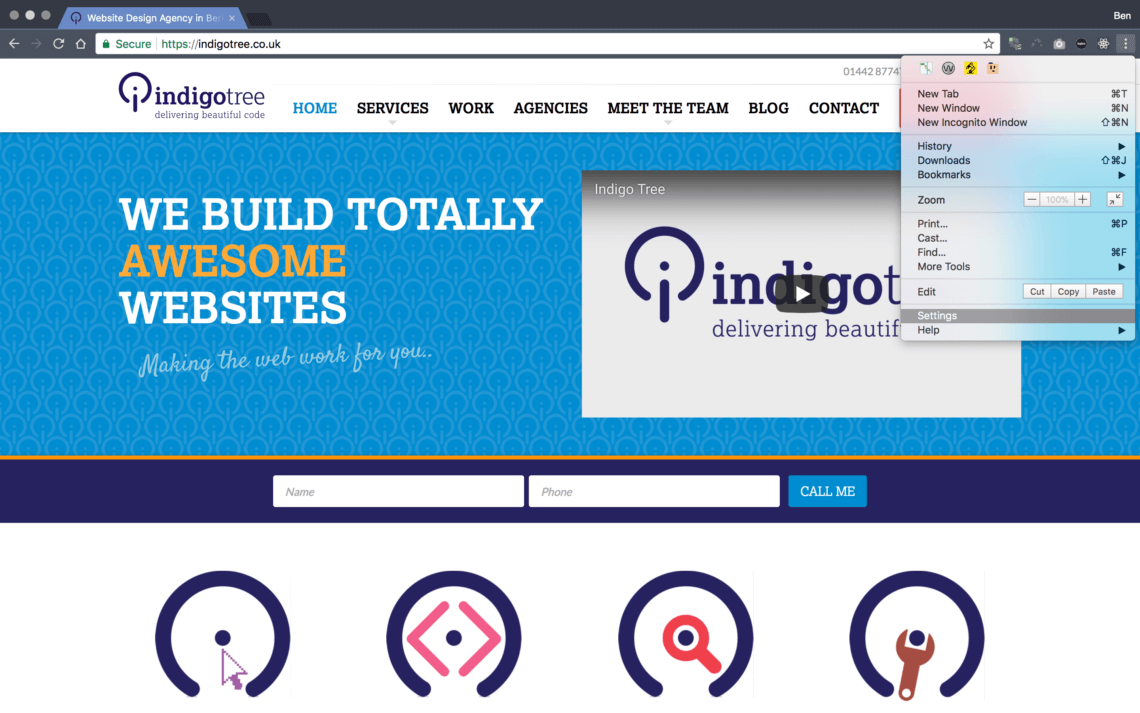
Website homepage with Indigo Tree logo and tagline "We build totally awesome websites." Features navigation menu, contact fields, and icons.

2. Search for “cache” in the search bar
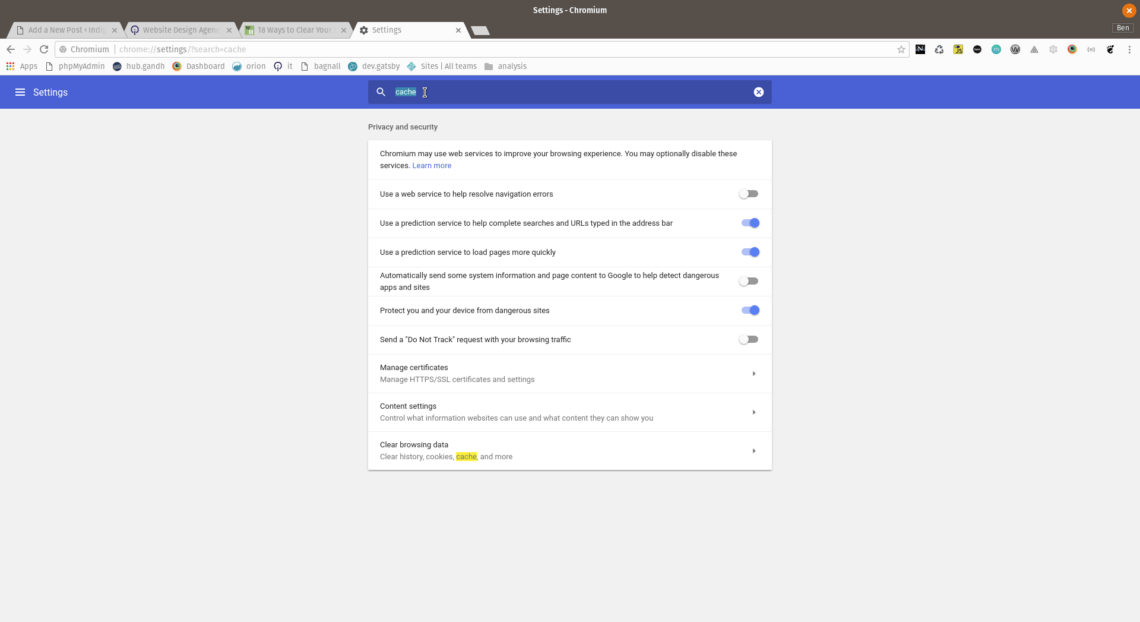
Chromium browser settings page displaying privacy and security options. The screen shows switches for web services, prediction services, and security settings. A search bar at the top contains the text "safe", highlighting related settings like safe browsing.

3. Tick “Browsing History” and click the “clear cache” button
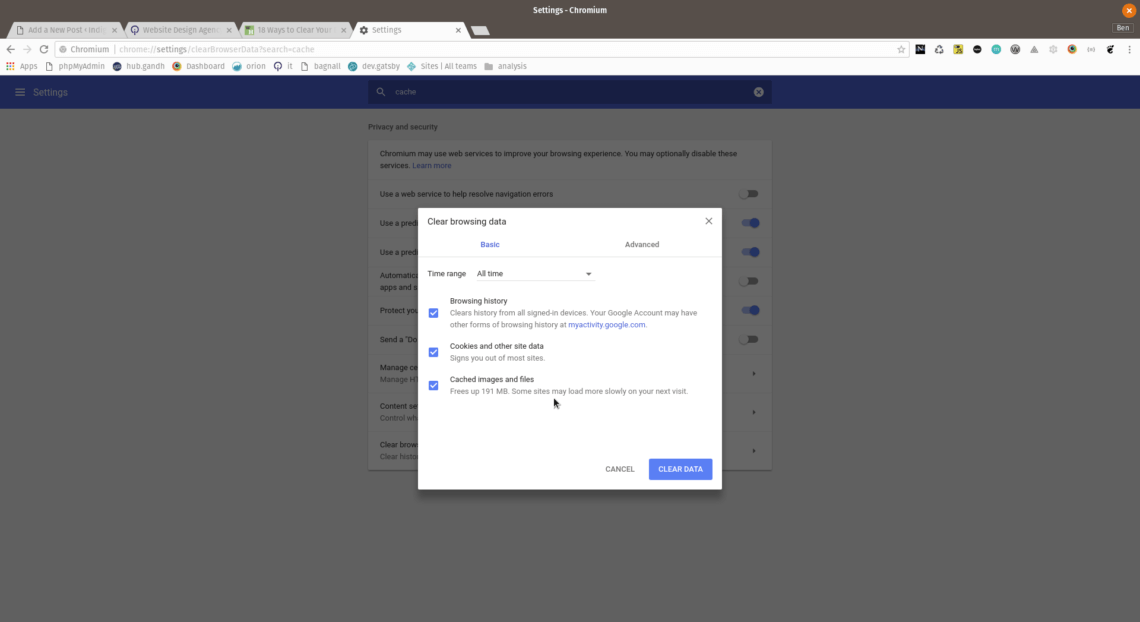
A browser settings window for clearing browsing data is displayed, offering options to delete browsing history, cookies, and cached images. The time range is set to "All time," and a blue "CLEAR DATA" button is visible at the bottom.

… in FireFox

  1. click on the three lines to the right** of the address bar
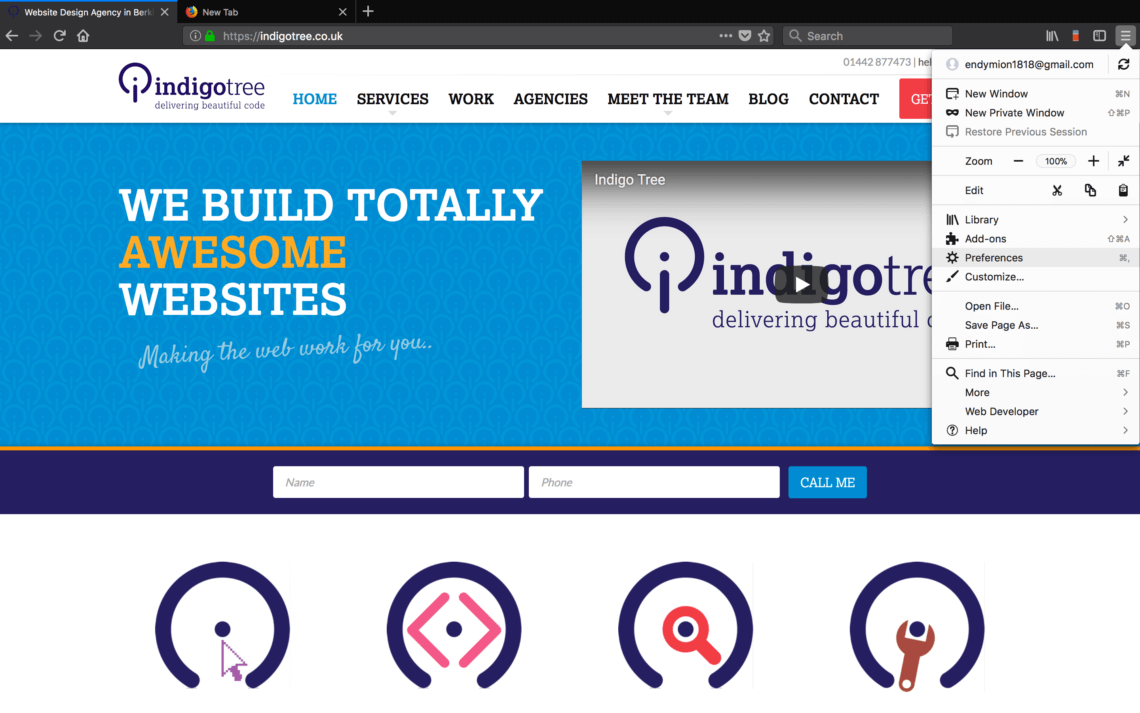
Browser screenshot of a web design agency's homepage. The header showcases "Indigo Tree" with the tagline, "delivering beautiful code." The page features navigation links and a bold headline: "We Build Totally Awesome Websites." Below, there's a contact form and icon graphics.

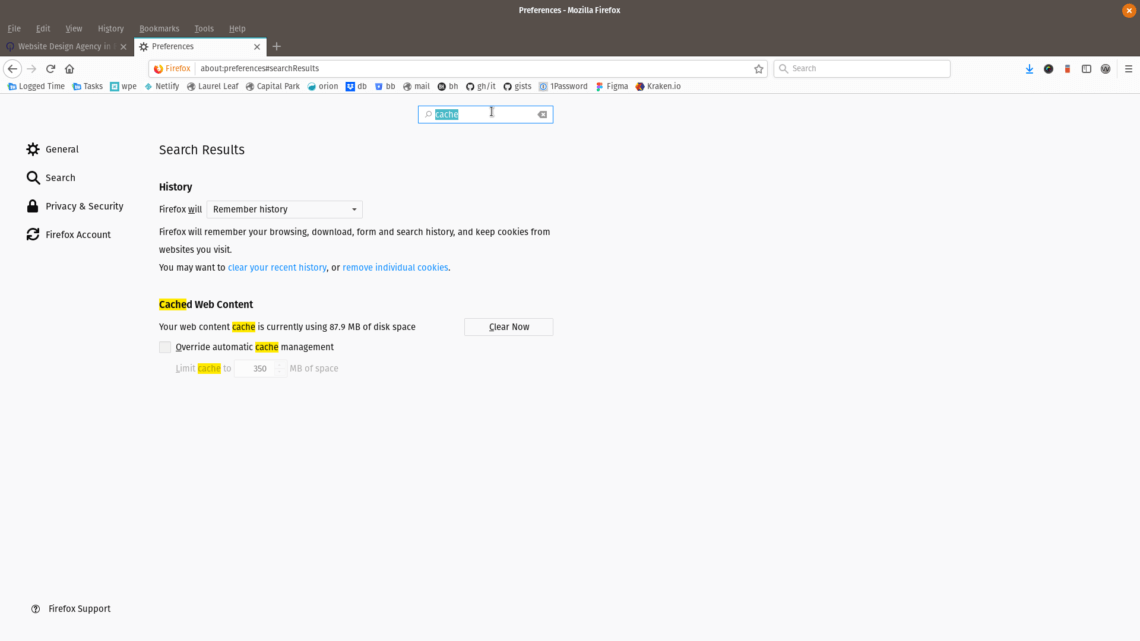
2. Search for “Cache” in the setting search bar
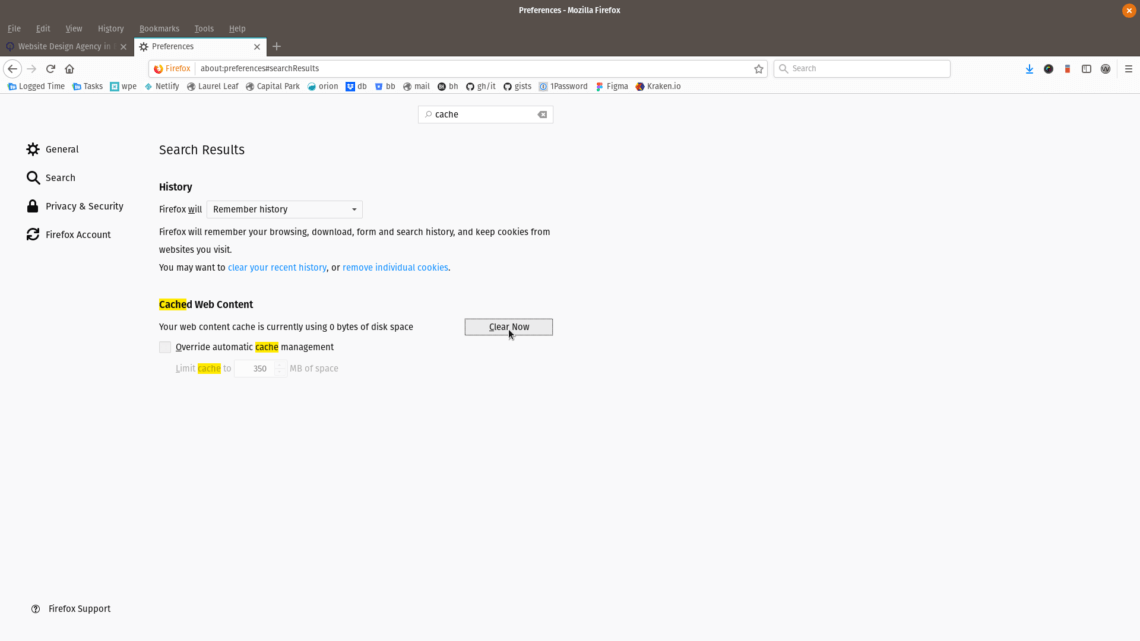
Firefox preferences page showing cache settings. The search bar contains "cache," and the section displays a "Clear Now" button for clearing cached web content. The cache is currently using 0 bytes of disk space.

3. Click on the “clear now” button

Firefox Preferences window displaying search results for "cache," with options for managing browsing history and clearing cached web content.

… in Safari for iOS

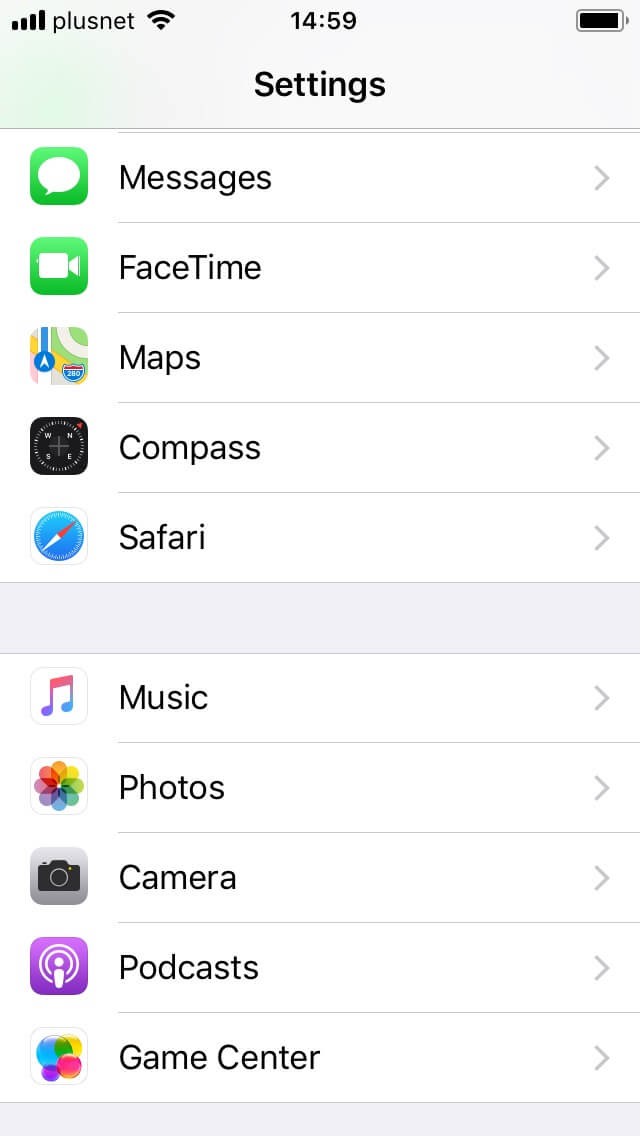
  1. Launch the “Settings” app
  2. Scroll to “Safari” settings
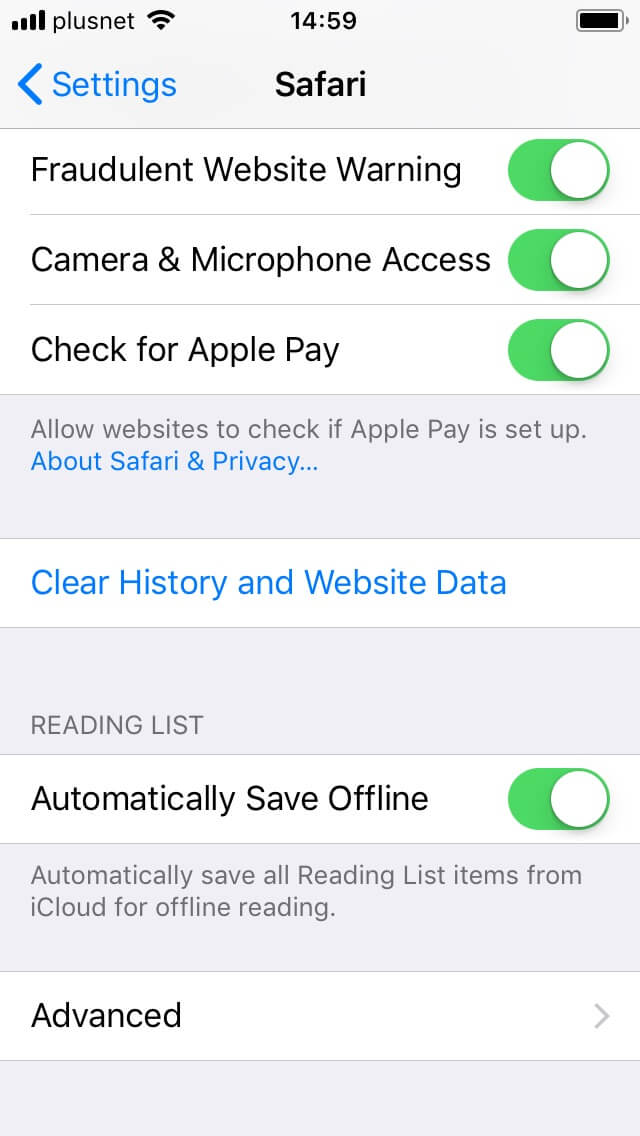
  3. Tap “Clear History and Website Data”
Safari settings screen on iPhone displaying options for Fraudulent Website Warning, Camera and Microphone Access, Apple Pay, and offline saving. All toggles are switched on.

… in Safari for MacOS

  1. Click on the “Safari” tab in the menu bar
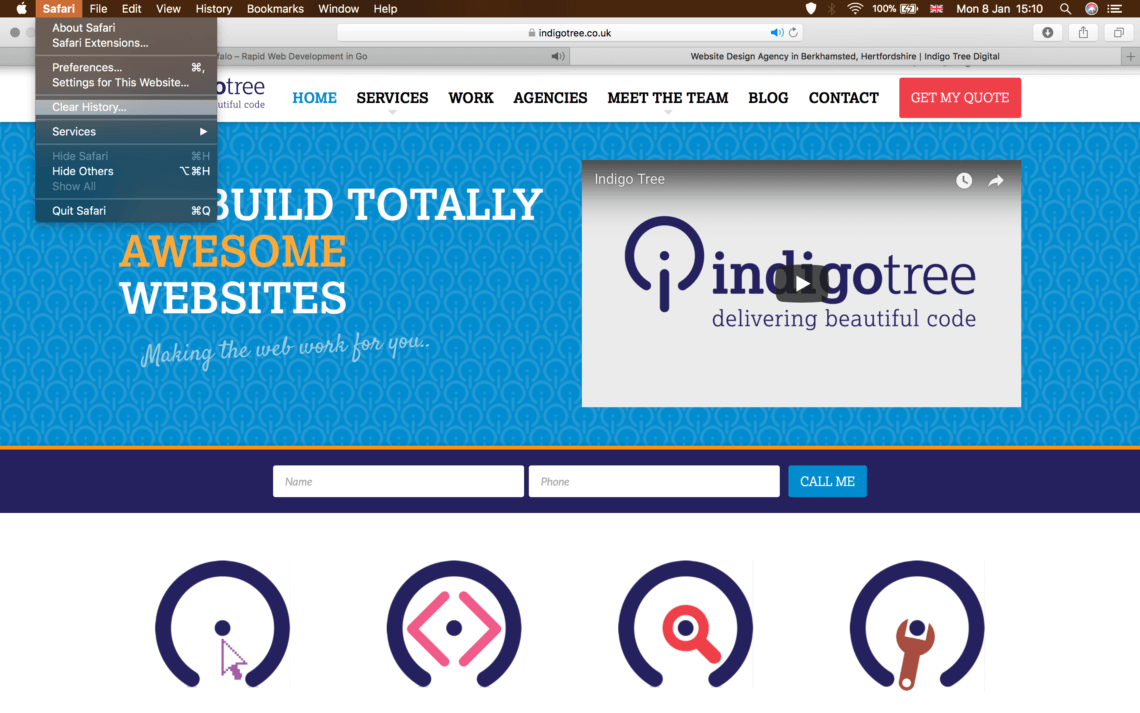
A screenshot of the Indigo Tree website displaying navigation options, including services and contact information. The homepage emphasizes "Building Totally Awesome Websites" alongside the Indigo Tree logo and tagline, "Delivering Beautiful Code." Three minimalistic icon designs are visible at the bottom.

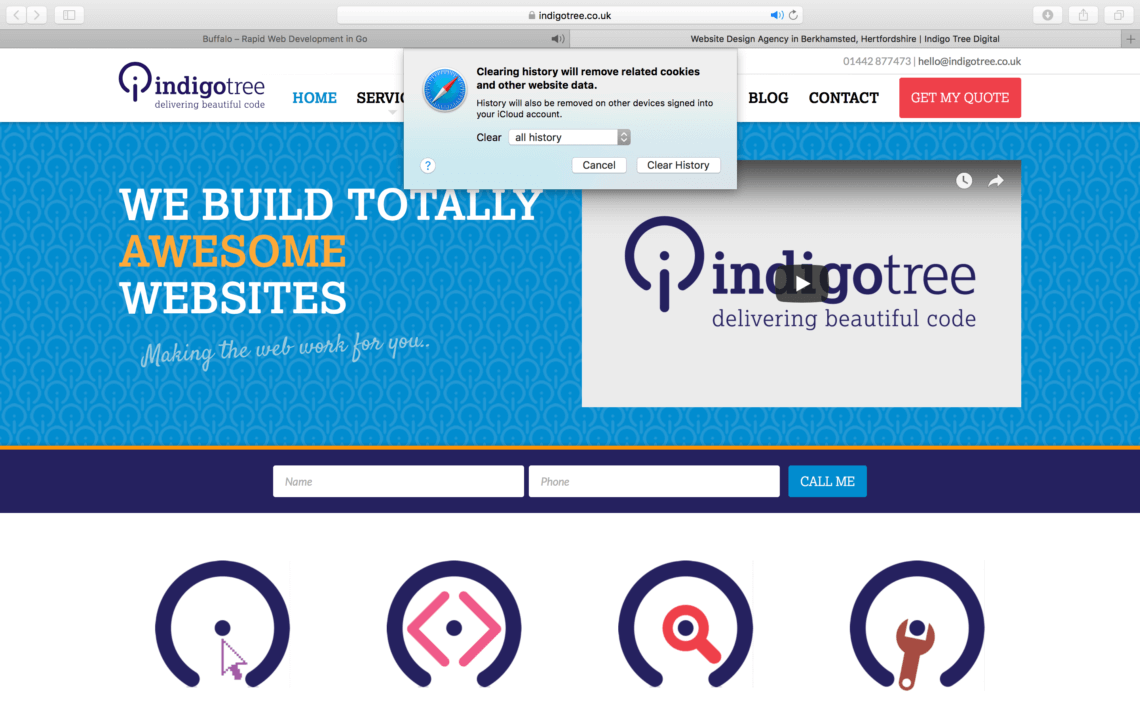
2. Click on “Clear History”

Screenshot of a website homepage for a digital agency. The banner reads "We build totally awesome websites," with the agency logo and contact information. A browser pop-up about clearing history is open. Below are icons symbolizing different services.

… in Edge

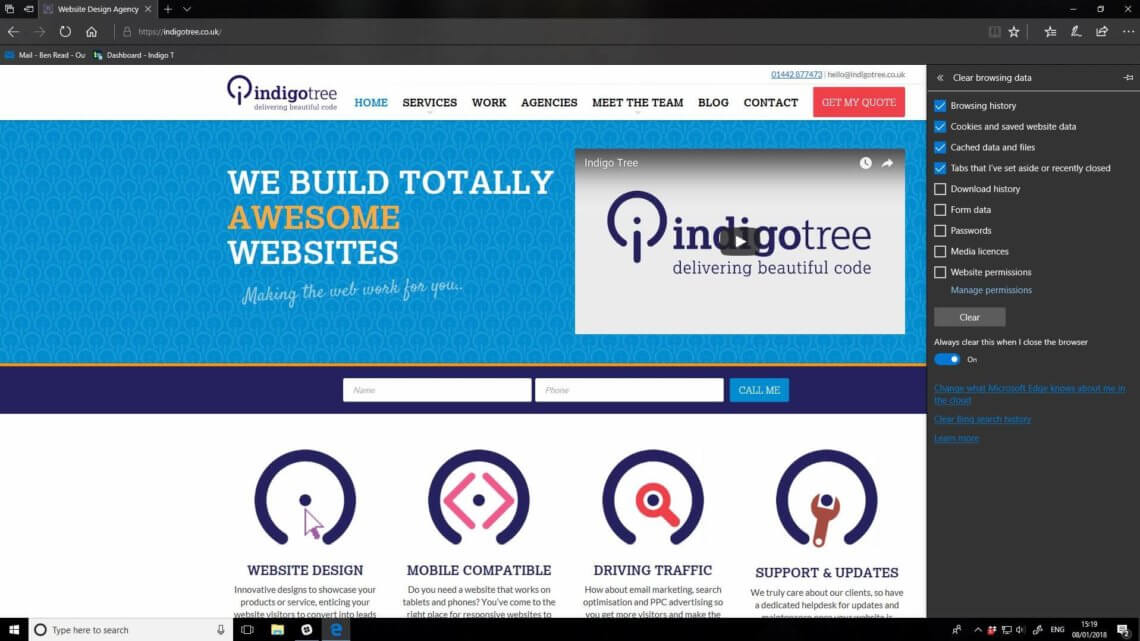
  1. Click on the three dots* to the right of the address bar and choose “Settings”
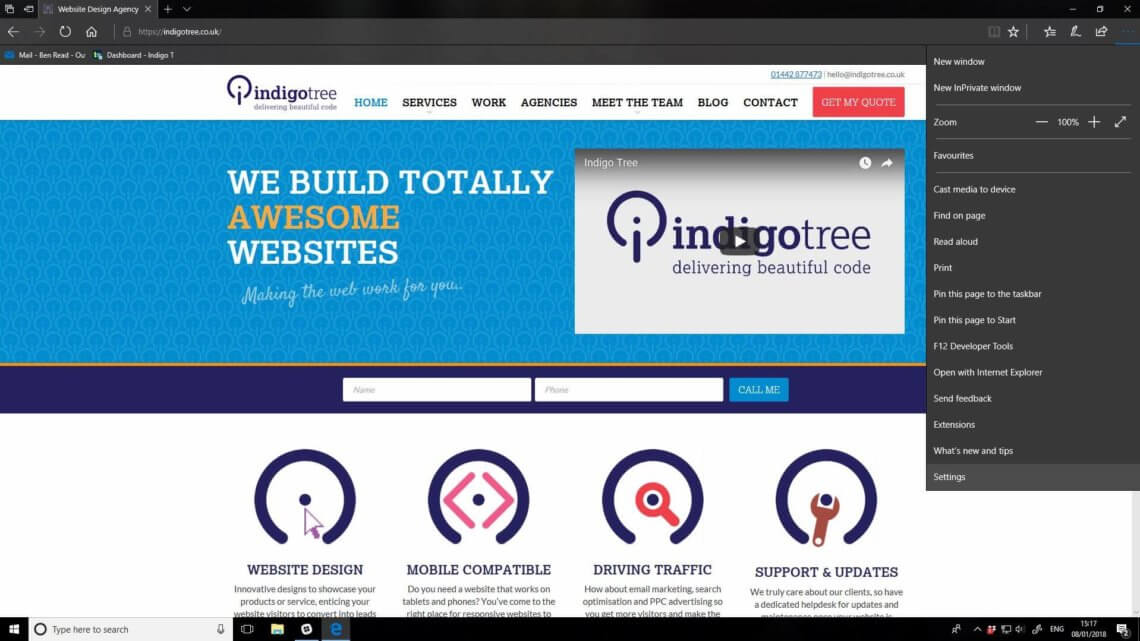
Screenshot of a web design agency's homepage with navigation menu, a banner saying "We Build Totally Awesome Websites," and icons for website design, mobile compatibility, driving traffic, and support. A video thumbnail with the agency's logo is displayed. Browser settings are visible on the right.

2. click the “choose what to clear” button
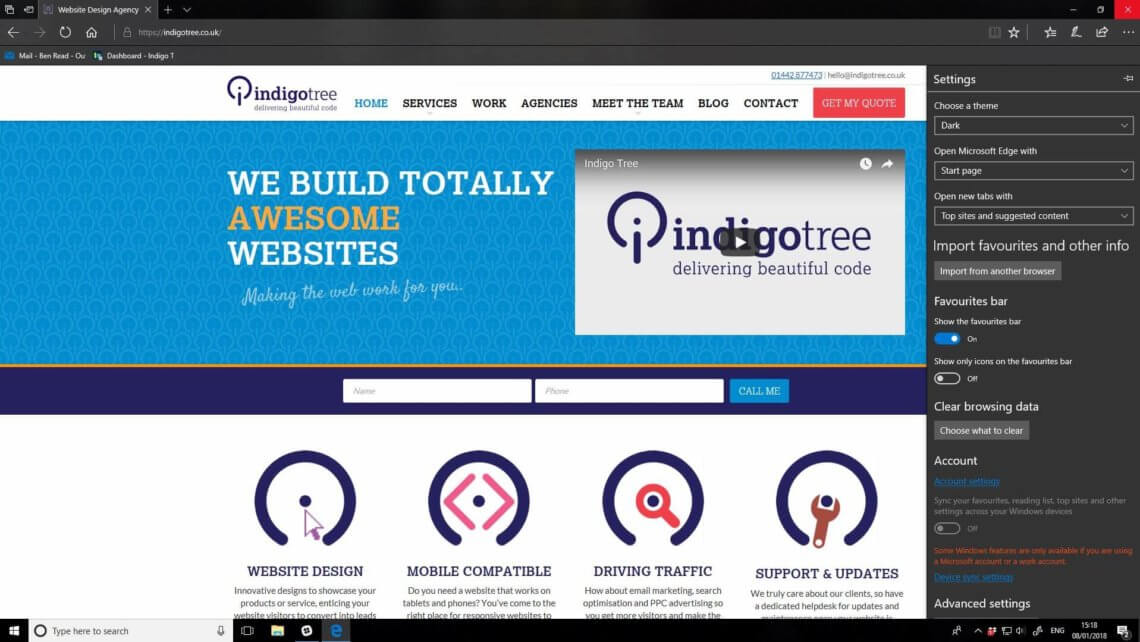
Screenshot of the Indigotree website showcasing services like website design, mobile compatibility, driving traffic, and support. The site features a blue header with their slogan: "We build totally awesome websites." The browser settings sidebar is visible on the right side of the screen.

3. Click “Clear”

Screenshot of a website homepage for a design agency. The page includes a blue header with the slogan, "We build totally awesome websites," and the agency's logo. Below are sections highlighting services like website design, mobile compatibility, and traffic driving, with corresponding icons.

Older Browser?

We’ve covered how to clear your browser cache in the most common browsers today. If you have an older browser and you currently have a support contract you can call our support team for a personal guide. Otherwise here’s a more comprehensive (and older) guide that might help you.

* These three lines are sometimes referred to as the “hamburger menu”
** these three dots are sometimes referred to as the “kebab menu”